Connect Measured MCP to Claude.ai

Connect Claude.ai directly to your Measured account so you can ask questions about your brand's cross-channel performance and get clear, formatted answers — without leaving the conversation.
Two roles, two paths: An Owner sets up the connector once for the whole organization (Part 1). Then every team member connects their own account (Part 2). Jump to whichever part applies to you.
What is Measured MCP?
Measured MCP is a connector that links Claude.ai directly to your Measured account. Once connected, Claude can answer questions about your cross-channel performance using Measured's own data and skill library, so responses stay structured and consistent.
It gives you:
- Access to cross-channel data across all your brands in Measured
- AI-powered summaries and insights, formatted for easy reading
- Responses powered by Measured's skill library
Before you start
Have these ready:
- A Claude.ai account on a Team or Enterprise plan
- Owner access to your Claude.ai organization — only required for the one-time setup in Part 1
- Your Okta SSO credentials — the same login you use at portal.measured.com
Not sure if you're an Owner? Go to claude.ai → Organization Settings. If you can open that page, you're an Owner.
Part 1 — Set up the connector Owners · one-time
Do this once for your whole organization. If your Owner has already added the Measured connector, skip ahead to Part 2.
Step 1 — Open Organization Settings
- Go to claude.ai and sign in.
- Click your profile icon in the top-right corner.
- Select Organization Settings.
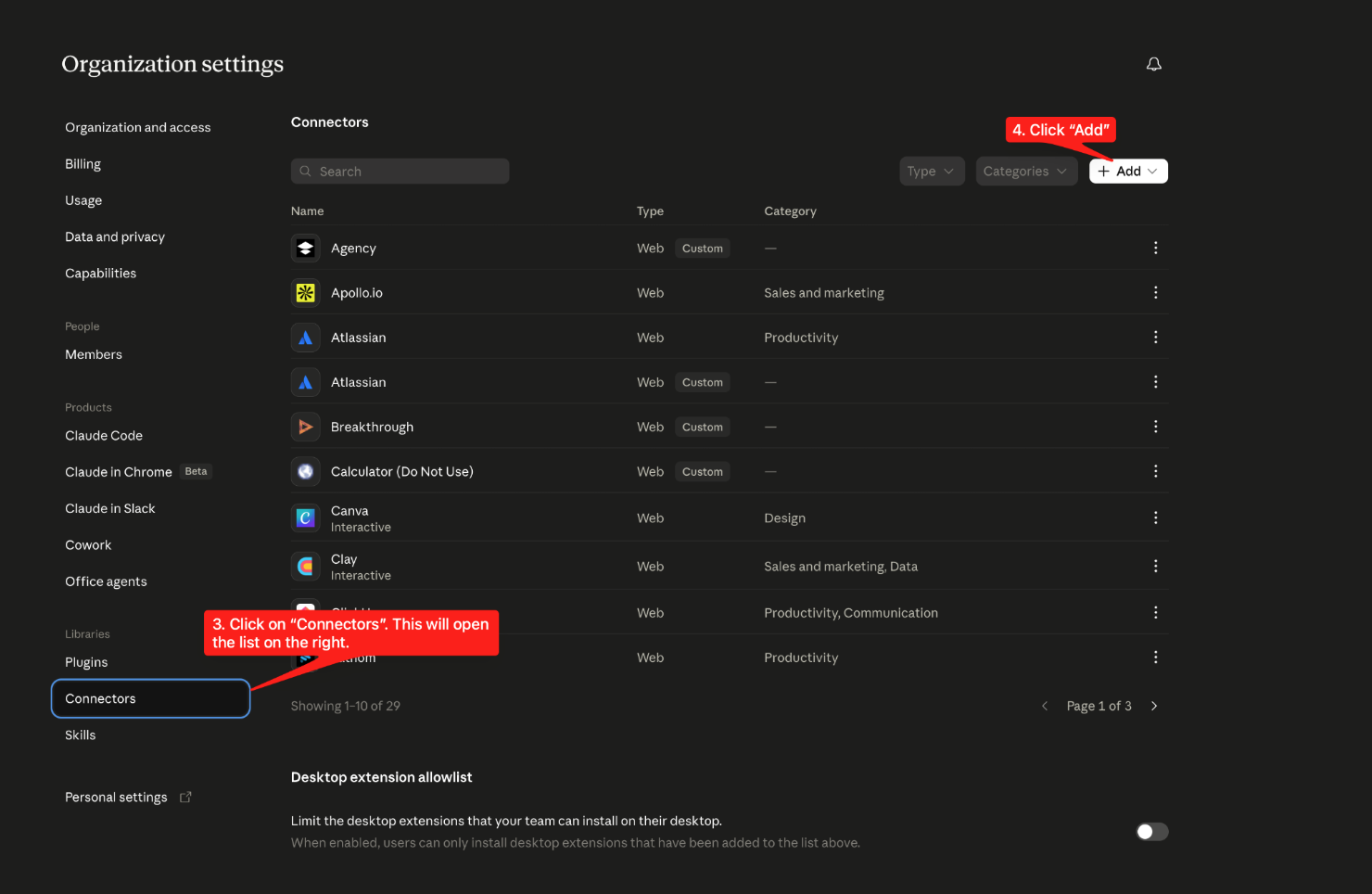
- In the left menu, click Connectors.
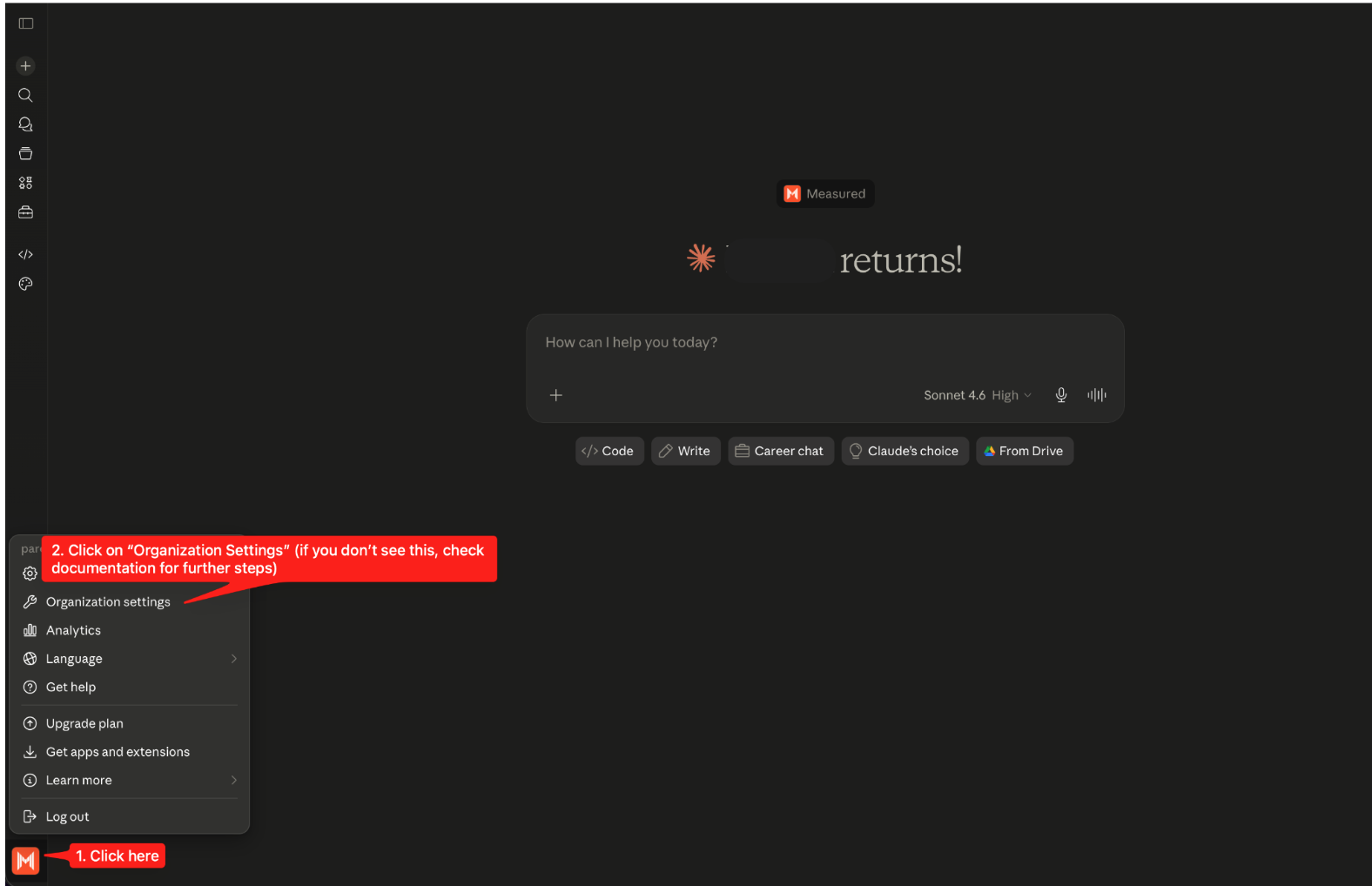
Step 2 — Add a custom connector
- Click the Add button at the top-right of the Connectors page.
- Hover over Custom, then select Web.
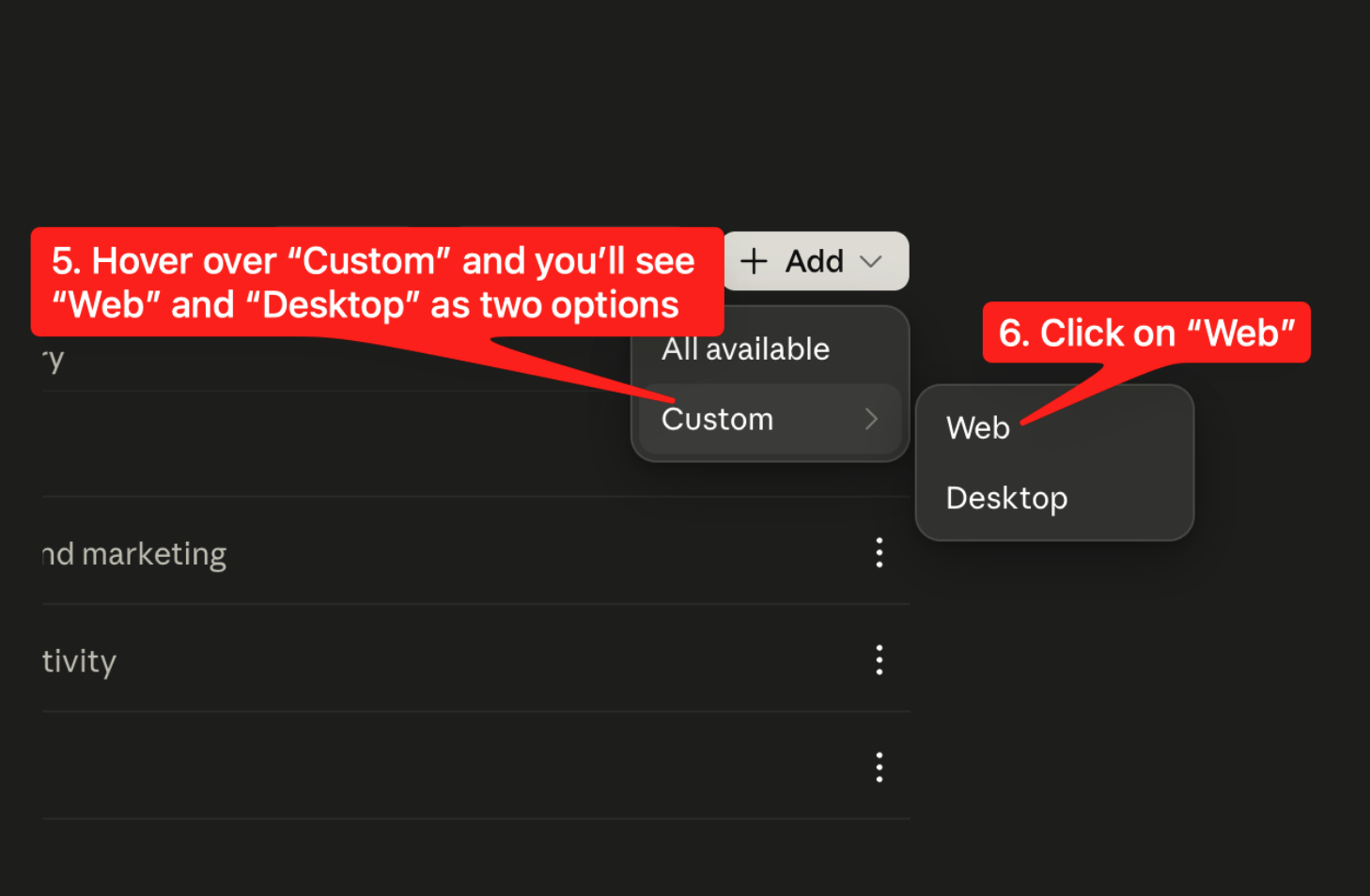
Step 3 — Enter the name & MCP URL
- In the Name field, enter
Measured. - In the URL field, enter:
https://mcp.measured.com/mcp-server
The URL is the only required field. Leave Client ID and Client Secret blank unless Measured support has specifically provided them.
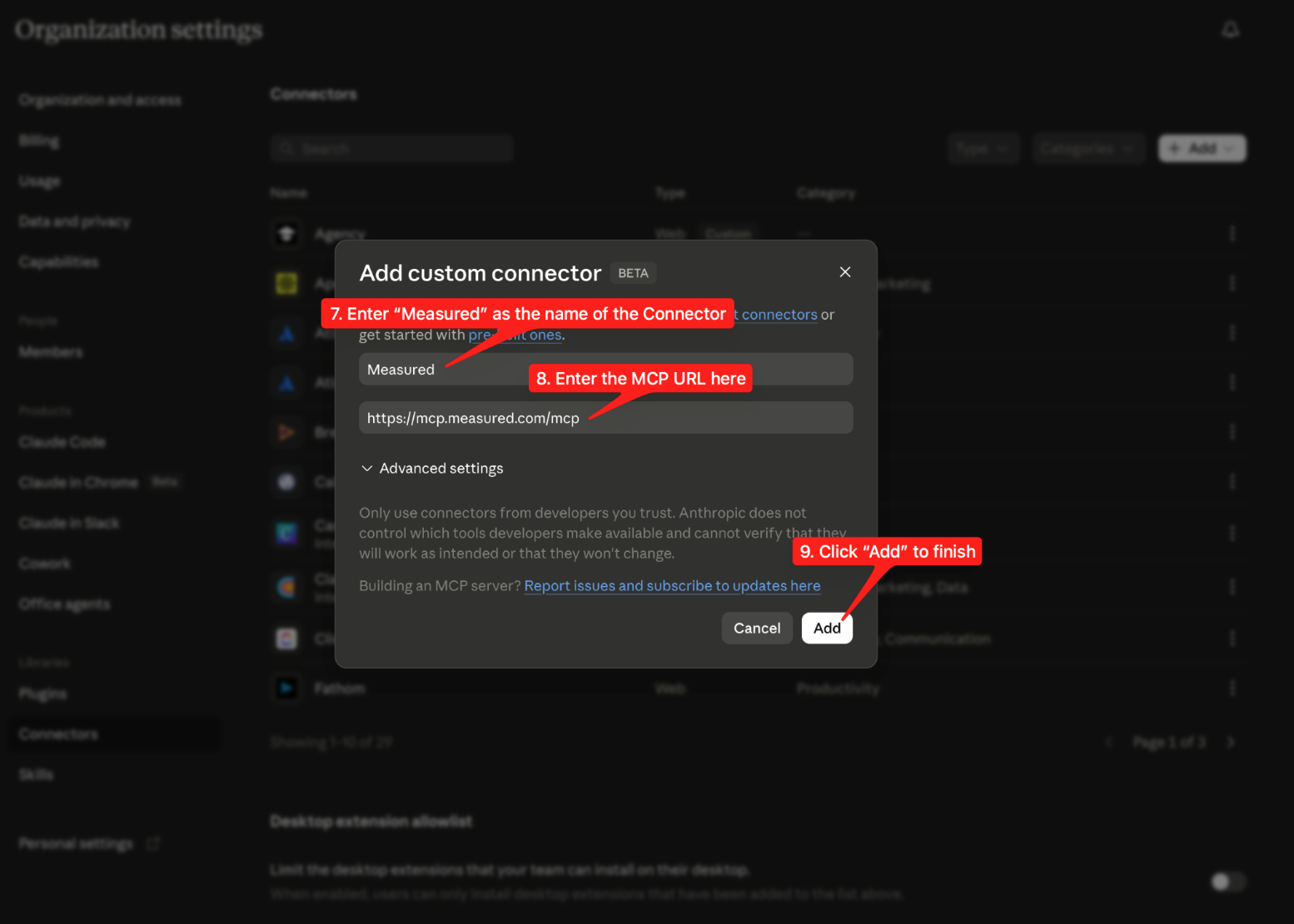
Step 4 — Finish adding the connector
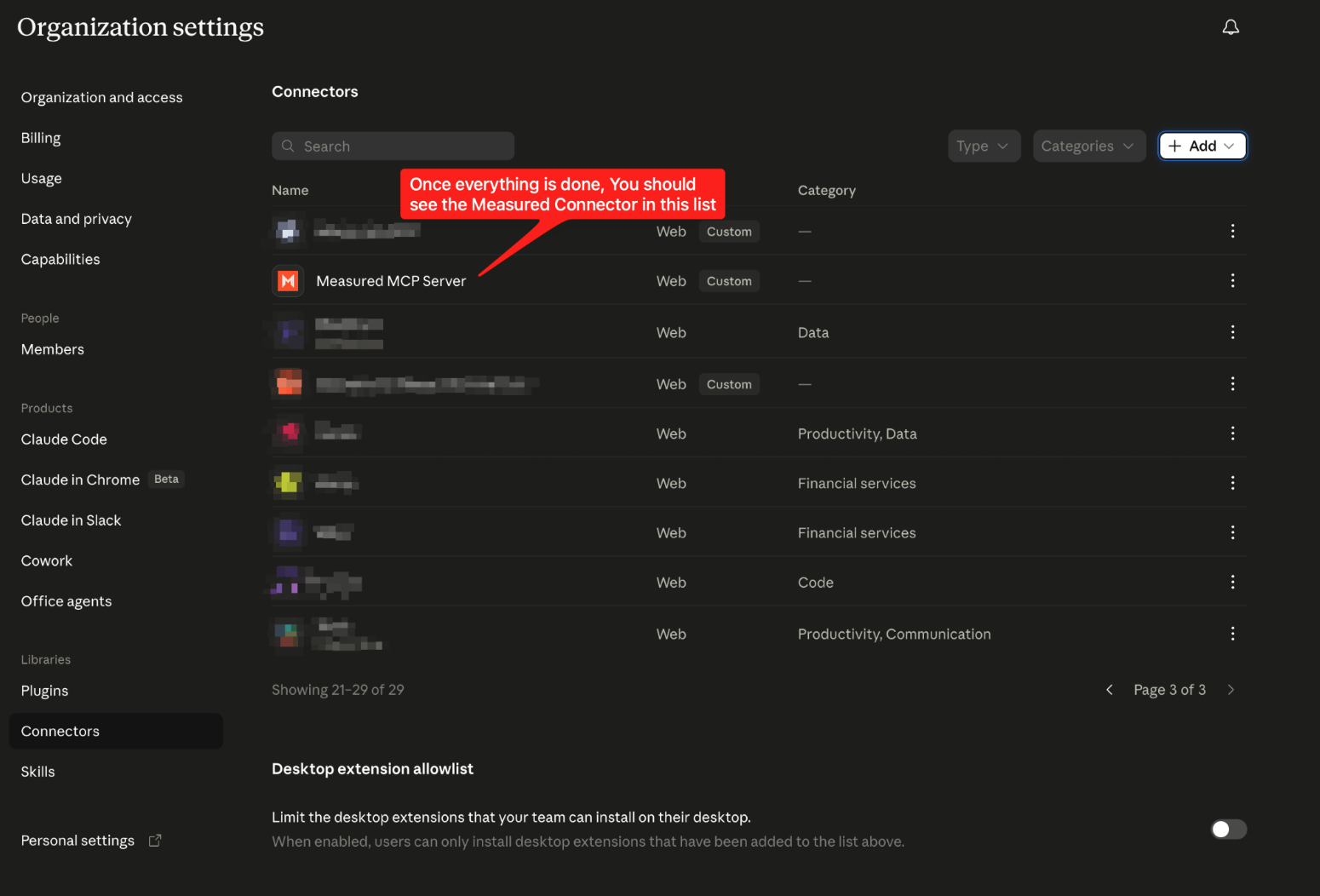
- Click Add to save.
- Confirm that Measured now appears on your Connectors page.
✅ The connector is now available to everyone in your organization. Each person still completes Part 2 to link their own account.
Part 2 — Connect your account Every user
Each person connects their own account once. This ensures Claude only accesses the data you have permission to see.
Step 5 — Connect as a member
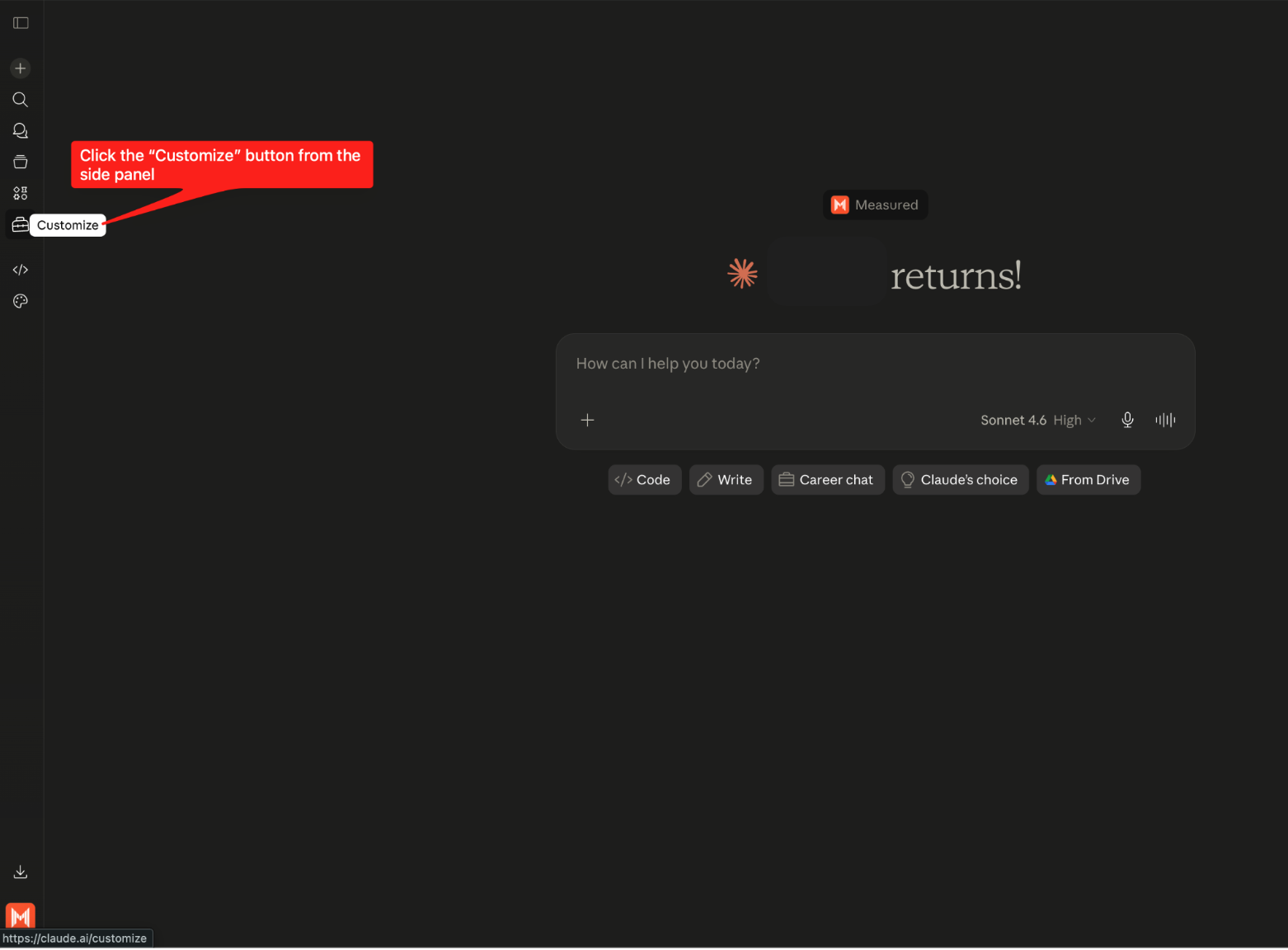
- Go to claude.ai → Customize → Connectors.
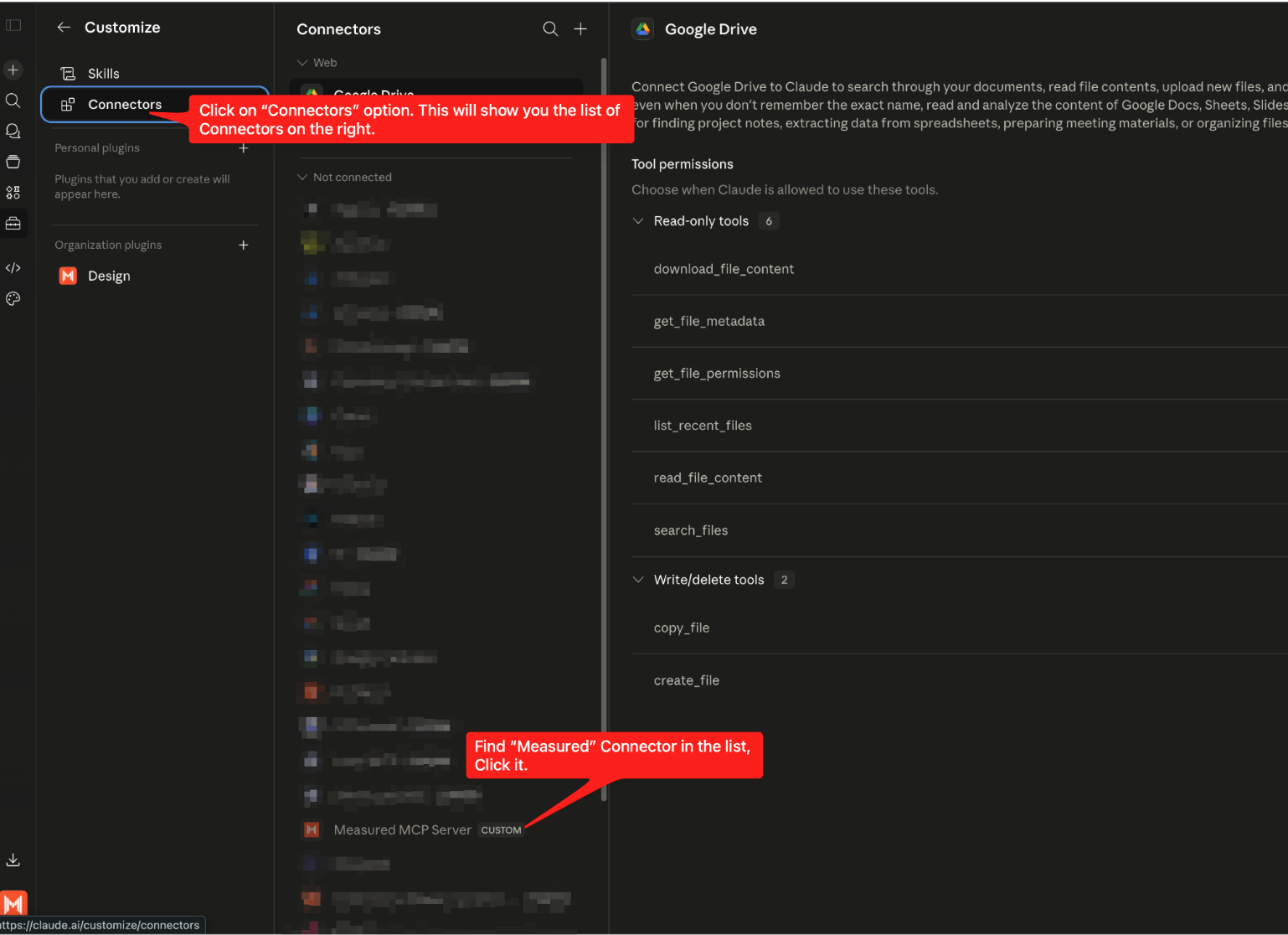
- Find Measured in the list (it will have a "Custom" label).
- Click Connect.
- You'll be redirected to the Measured login flow — log in with the same credentials you use at portal.measured.com.
- Once authenticated, you'll return to Claude. You're connected.
Step 6 — Enable the connector in a conversation
The connector doesn't run automatically — turn it on per conversation.
- Open a new chat in Claude.
- Click the + icon at the bottom-left of the chat input.
- Select Connectors.
- Toggle Measured MCP on.
You're ready to go. Try asking:
- "What were the top-performing channels for [Brand Name] last month?"
- "Give me a summary of MIM results for [Brand Name]."
Troubleshooting
Issue | What to try |
Can't see Organization Settings | You may not be an Owner — ask your org admin. |
Okta login fails | Make sure you're using your portal.measured.com credentials. |
Connector shows "Disconnected" | Remove and re-add it. The MCP URL must be reachable over the public internet. |
No data returned | Confirm your Measured account has access to the brands you're querying. |
Still stuck? Capture the error message (a screenshot works great) and send it to your Customer Success Director at Measured.
Reference — Official Claude documentation
For Claude's full guide to custom MCP connectors, see Get started with custom connectors using remote MCP.
Key points:
- Only Owners on Team and Enterprise plans can add connectors for the organization; members then connect on their own.
- The MCP server URL must use HTTPS and be reachable over the public internet.
- Client ID and Client Secret are optional — most setups only need the URL.
- You can remove a connector anytime from Organization Settings → Connectors.
- Connectors are enabled per conversation — you control when Claude uses them.
Measured MCP uses OAuth 2.1 for authentication, backed by Okta SSO. Claude never sees your Okta password — authentication happens securely through the Okta login flow.