Connect Measured MCP to ChatGPT

ChatGPT supports remote MCP servers as Connectors on Plus, Pro, Business, Enterprise, and Edu plans. Admins control which connectors are available in a workspace.
See Connect MCP clients for prerequisites (MCP URL, OAuth 2.1 with DCR, admin role).
Steps
- Sign in to chatgpt.com.
- Note: You must be the workspace admin to perform adding MCP Server connection once for your entire org.
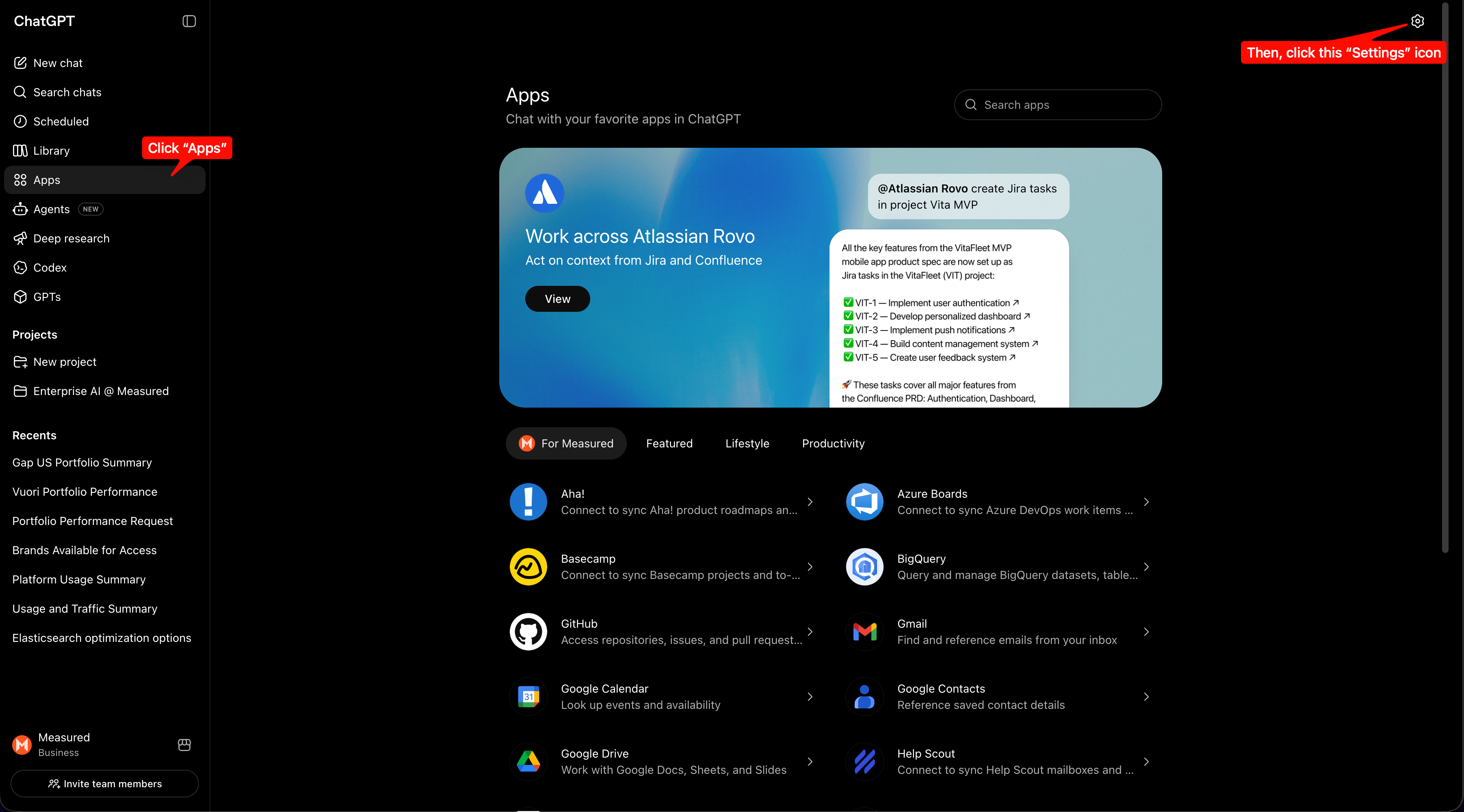
- Go to Apps from the Left Panel. Click the "Settings" cog wheel icon in the top-right corner.
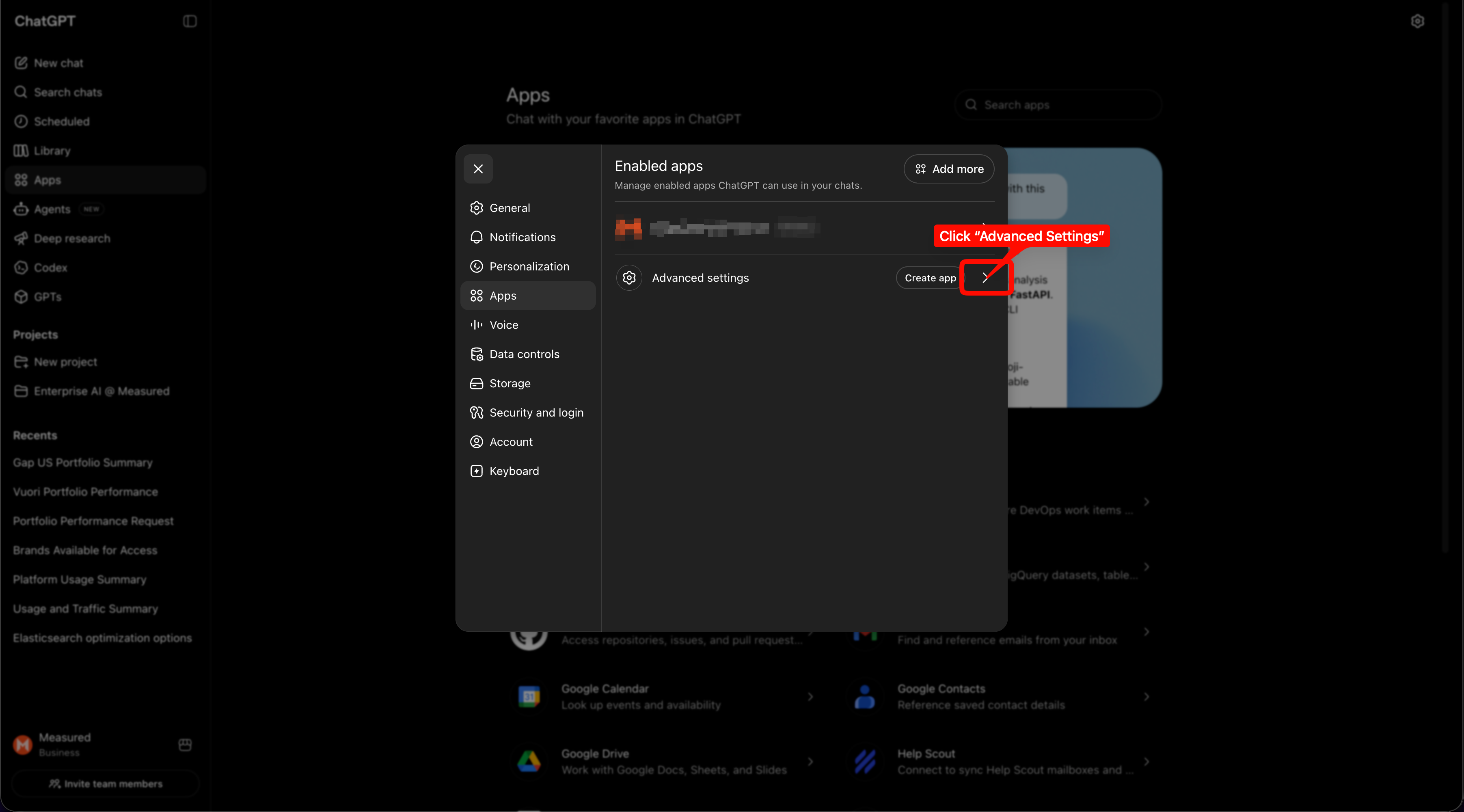
- Click "Advanced Settings" to check if Developer mode is enabled for your workspace.
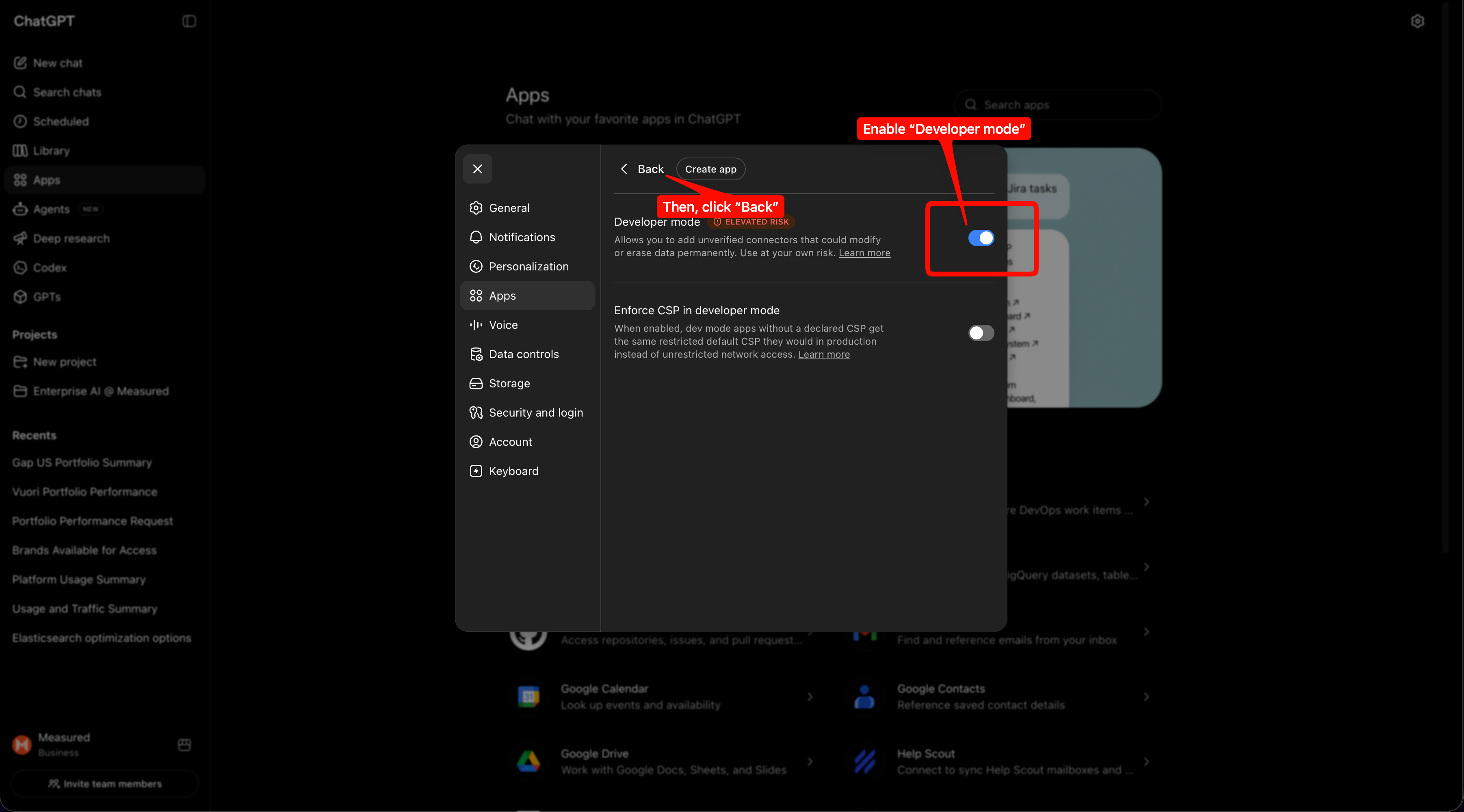
- Enable "Developer mode" if it's disabled, and click "Back"
- Note: This is required to create a custom app (MCP Server connection) for Measured MCP Server.
- Note: This is required to create a custom app (MCP Server connection) for Measured MCP Server.
- Click Create app.
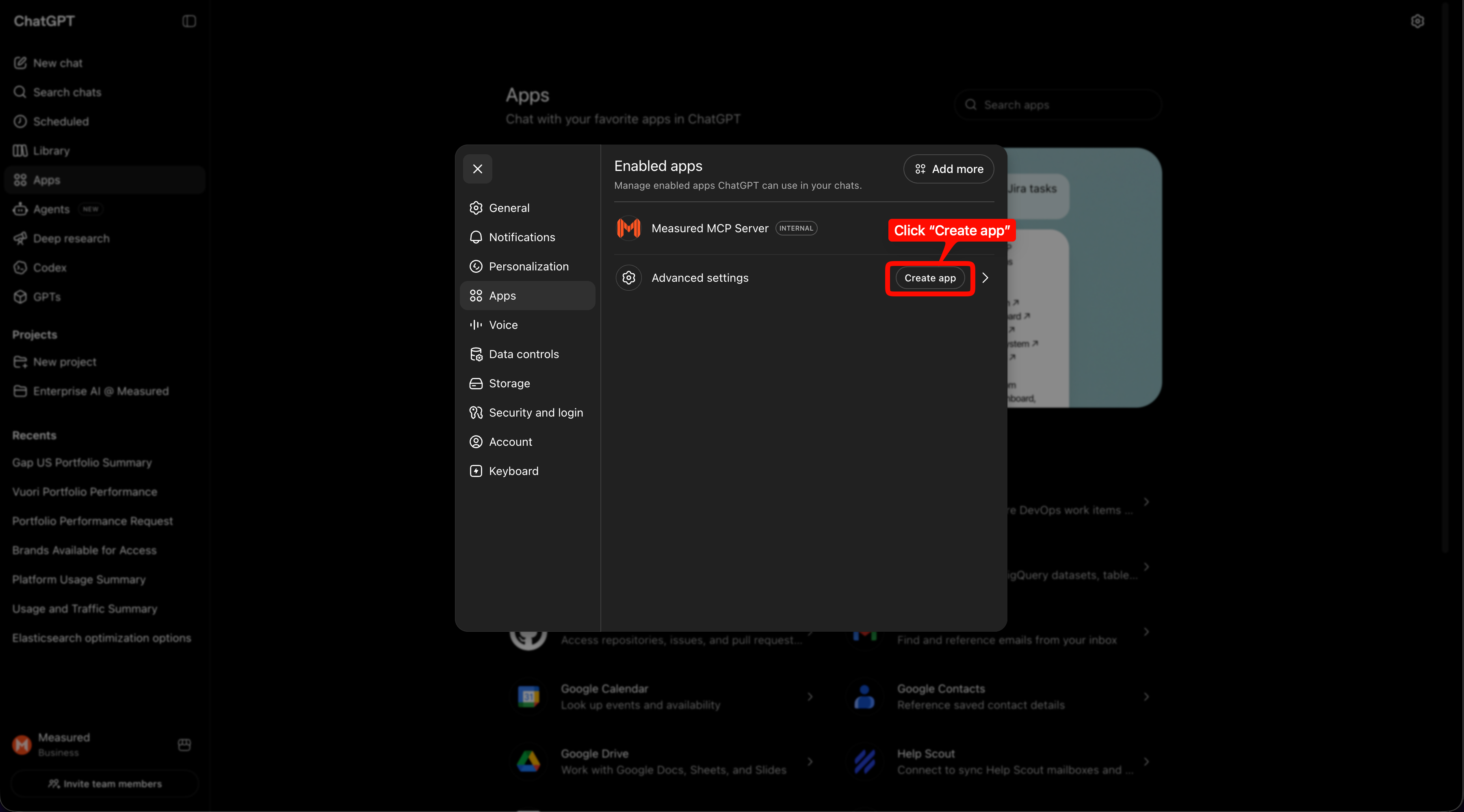
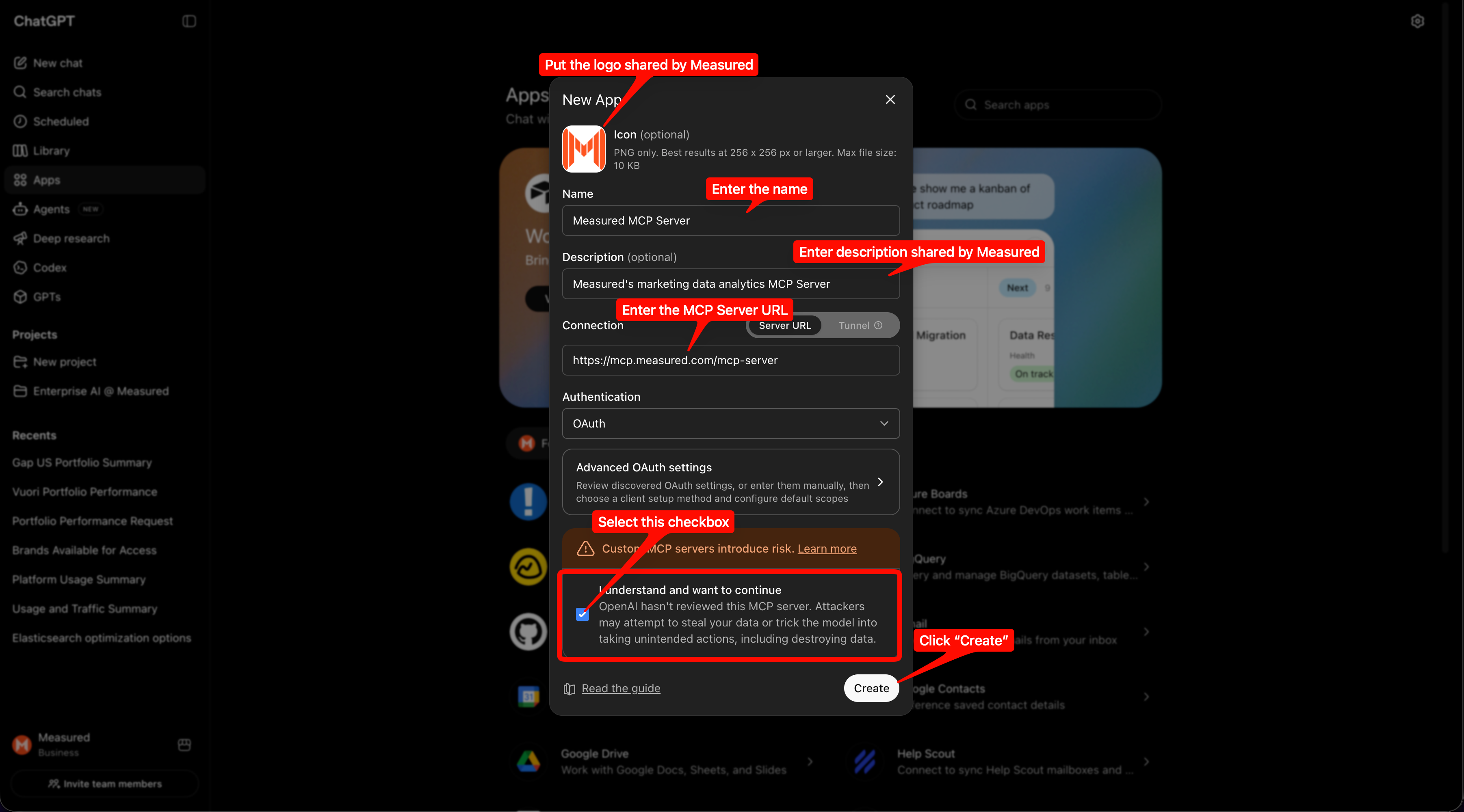
- Enter the required details:
- Name:
Measured - Description:
Measured's marketing data analytics & insights accessible to your AI through MCP - MCP Server URL:
https://mcp.measured.com/mcp-server - Authentication: OAuth (ChatGPT auto-registers via DCR — no client ID/secret needed)
- Check the box indicating that you understand that you're creating a custom connector
- Name:
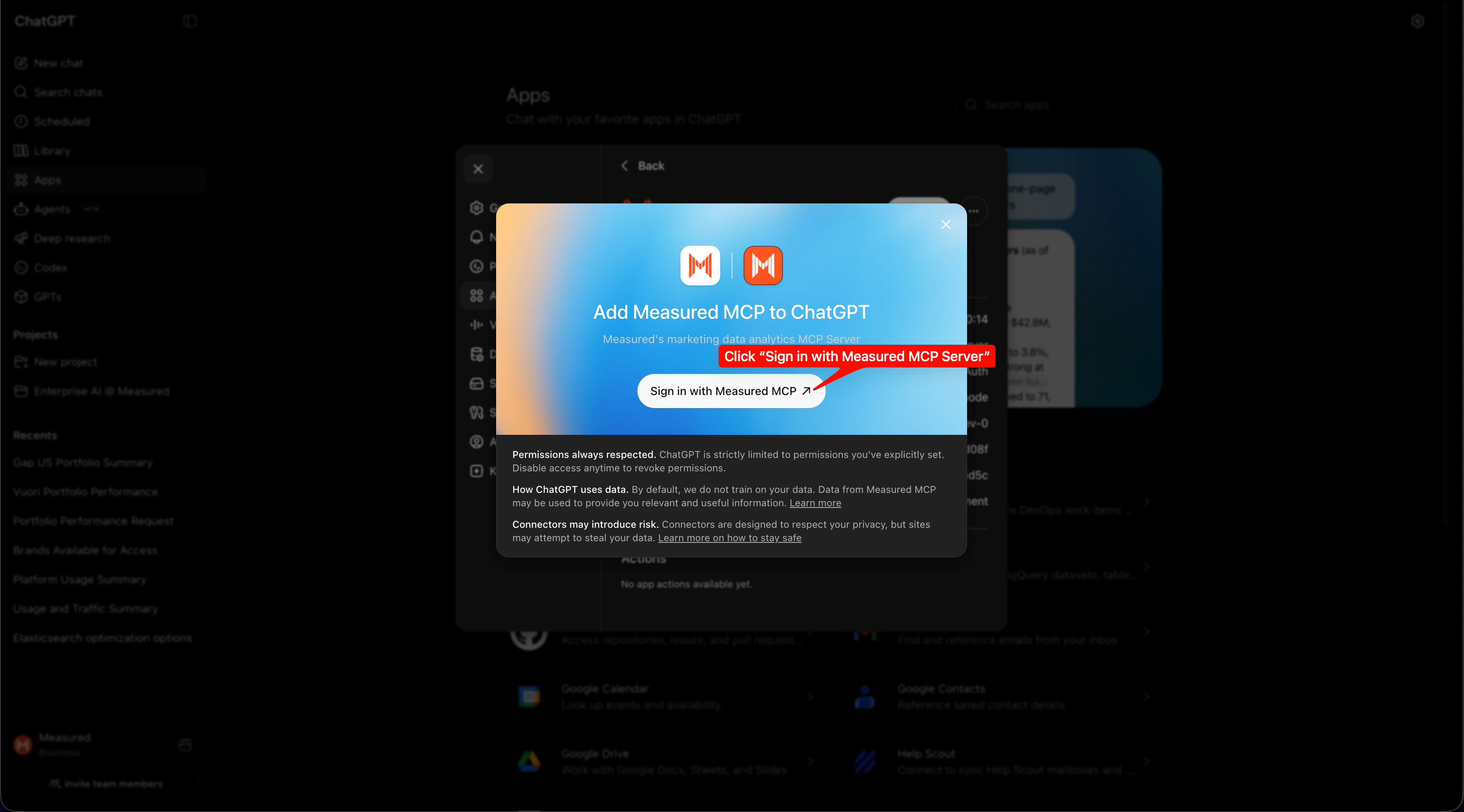
- Click "Create". It will then show you the login button to begin logging in to Measured MCP. Click the login button. It will take you through your Portal login flow (same as portal.measured.com, use the same credentials)
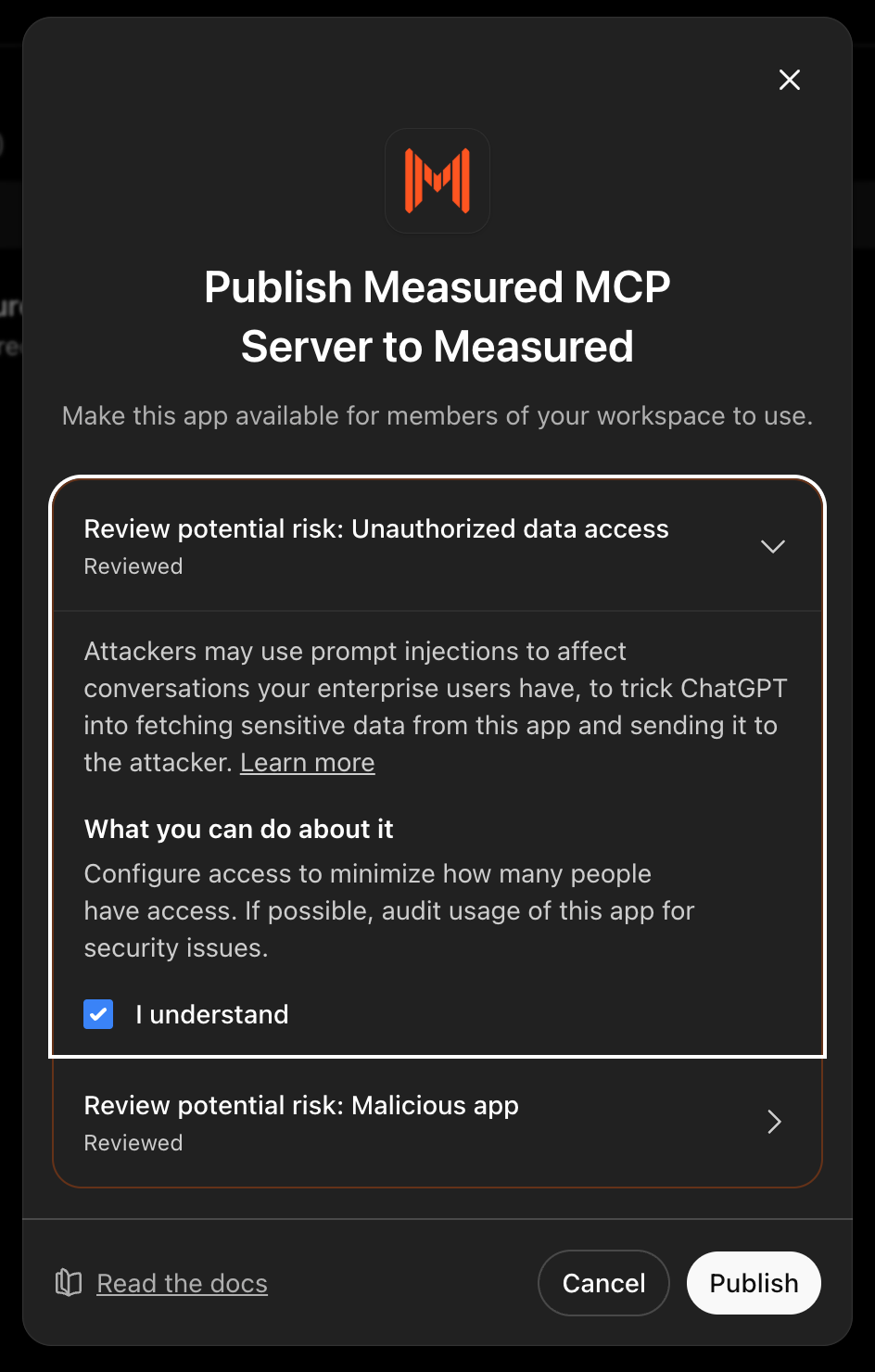
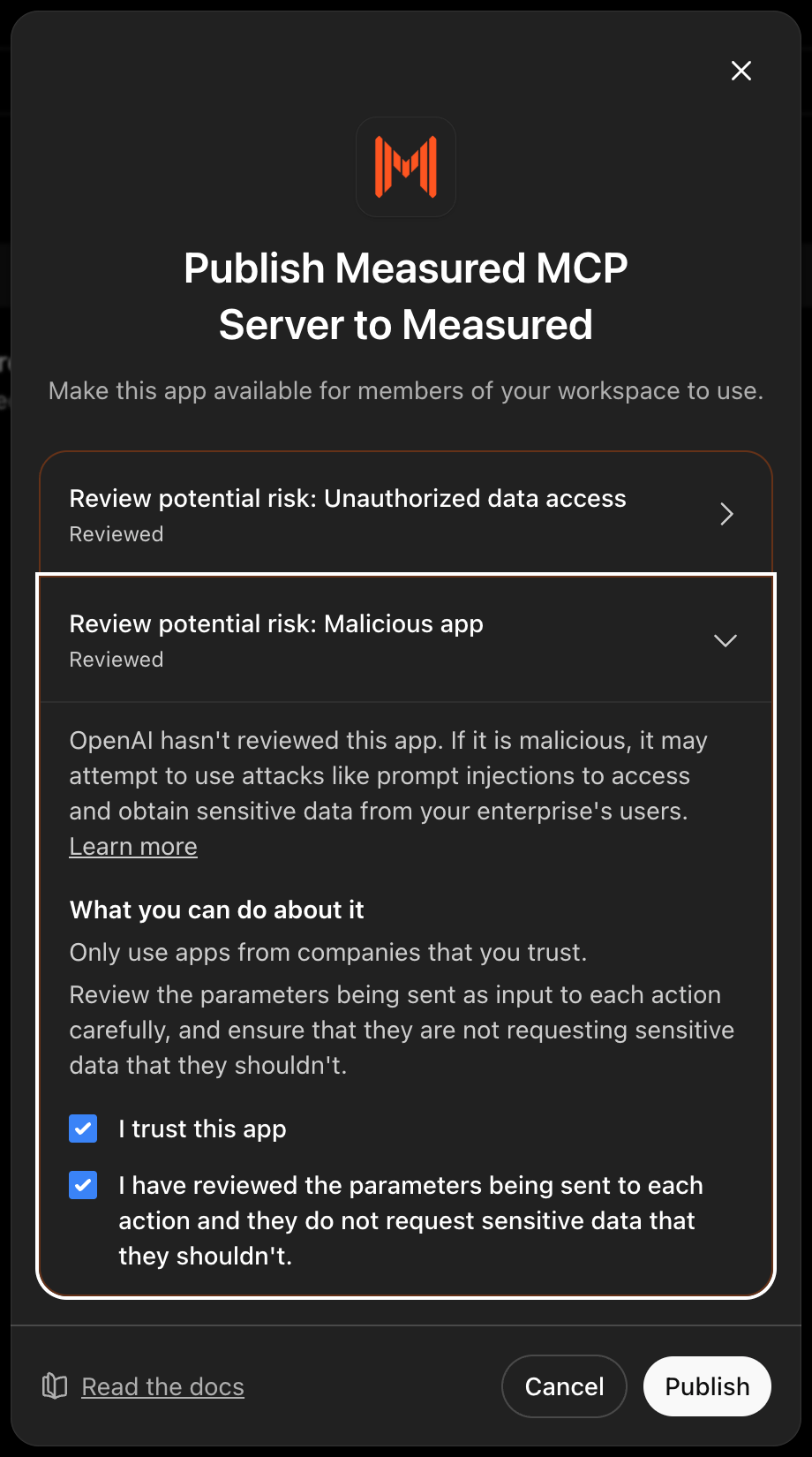
- Once this is done, click the custom app Measured MCP Server, click the three dots against the name in the right corner, and click "Publish". This will share this custom app with everyone in the workspace to begin using.
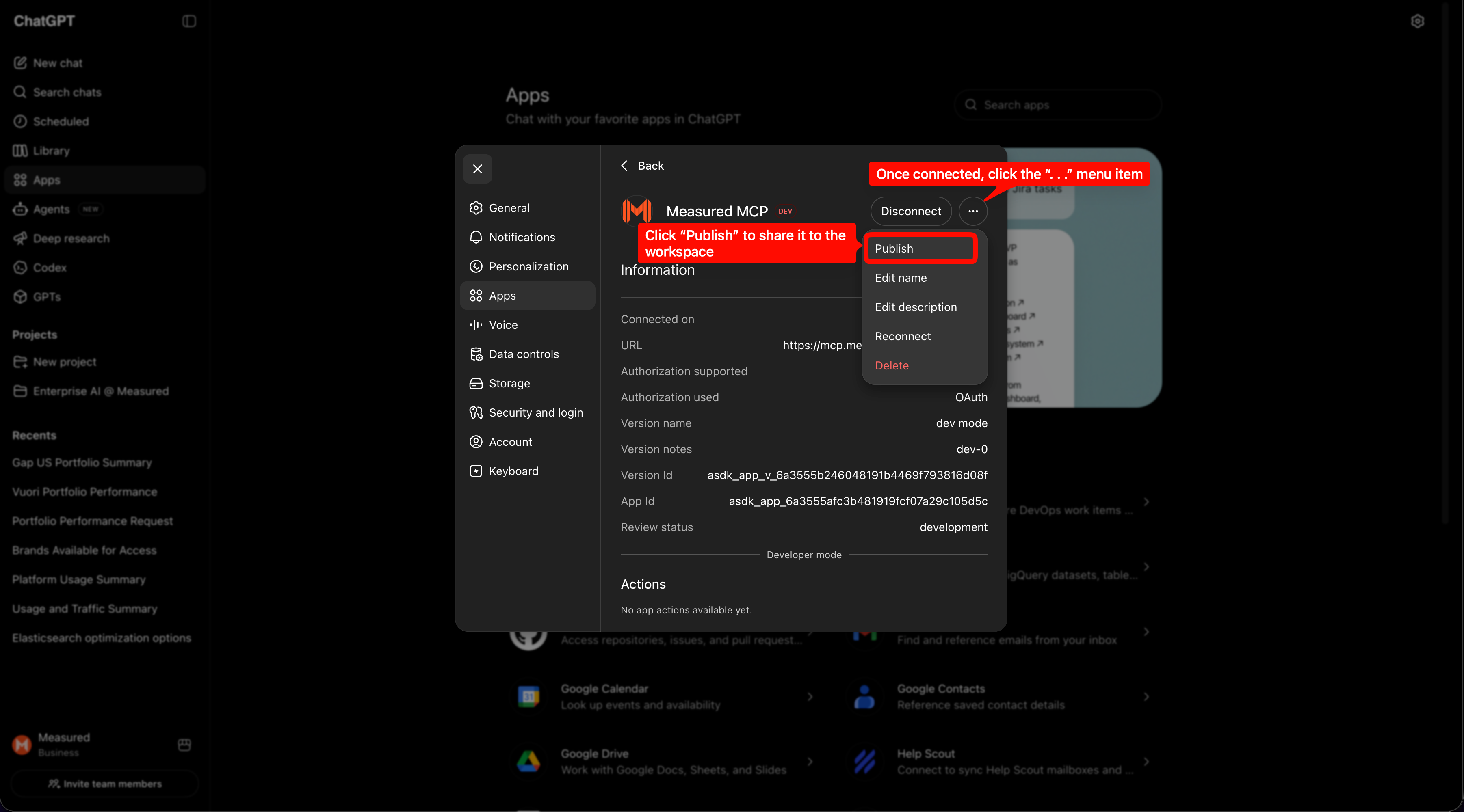
- Check both the boxes to accept the notices shown by chatgpt.com
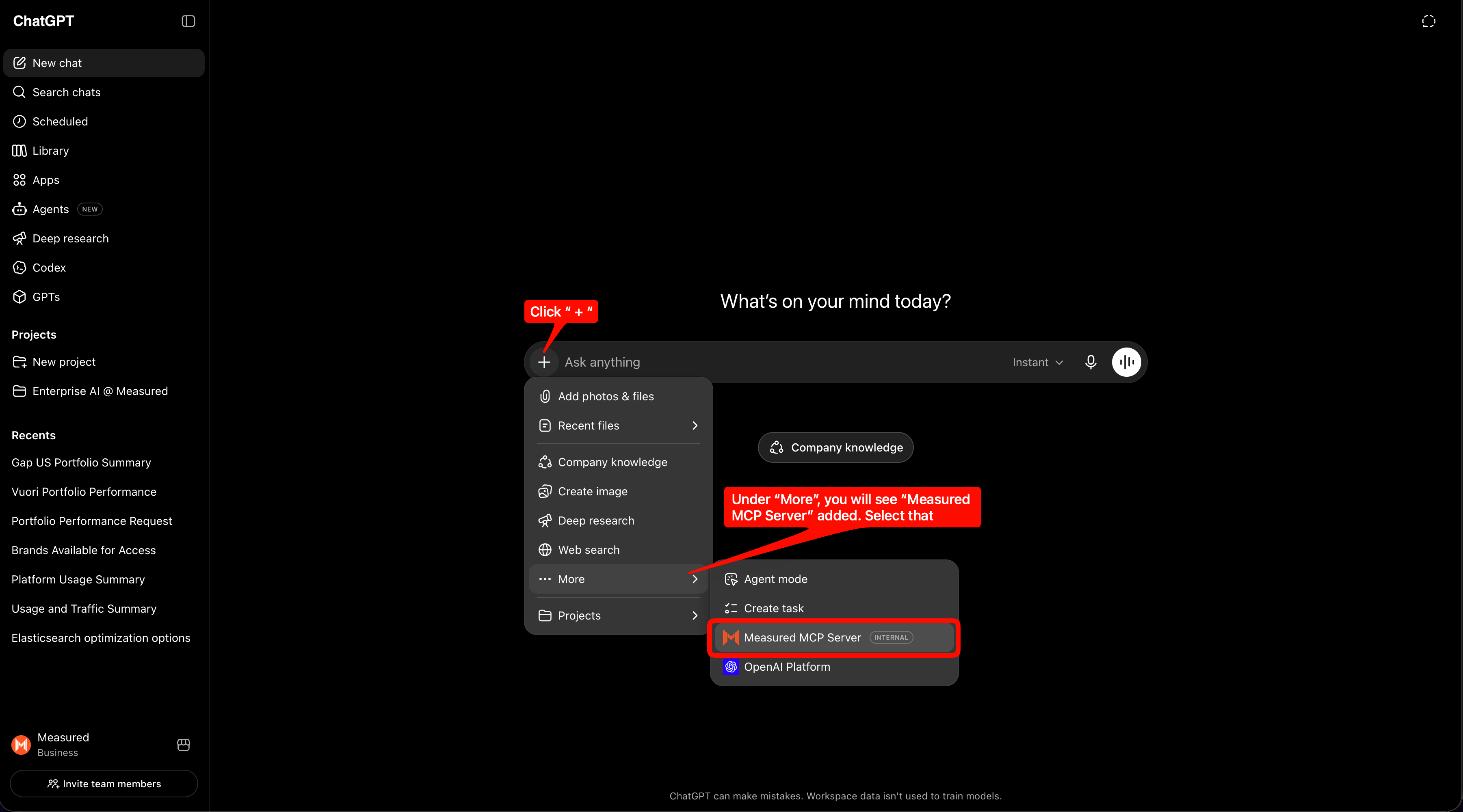
- After this, individual users in the workspace can go to "Apps", search for "Measured" in the search box, and select "Measured MCP Server".
- User proceeds to connect with Measured MCP Server with their portal login credentials
- Once successful, Measured MCP Server will be accessible to them.
- In a chat, click the + (tools) button and select Measured, or invoke it from Deep research and Agent mode where supported.